
Quick Start
AWS Databases
RDS, Aurora with IAM auth
GCP Databases
Cloud SQL, Spanner with service accounts
Azure Databases
Azure SQL with managed identity
Basic Connection
Before configuring connection parameters, ensure network connectivity: Network Requirements:- Verify network routing between Bytebase and your database instance (e.g., VPN, private networks)
- Configure firewall rules to allow Bytebase to connect to your database port
- For cloud databases, add Bytebase to security groups or IP allowlists
- Bytebase Cloud users: Whitelist required IPs
-
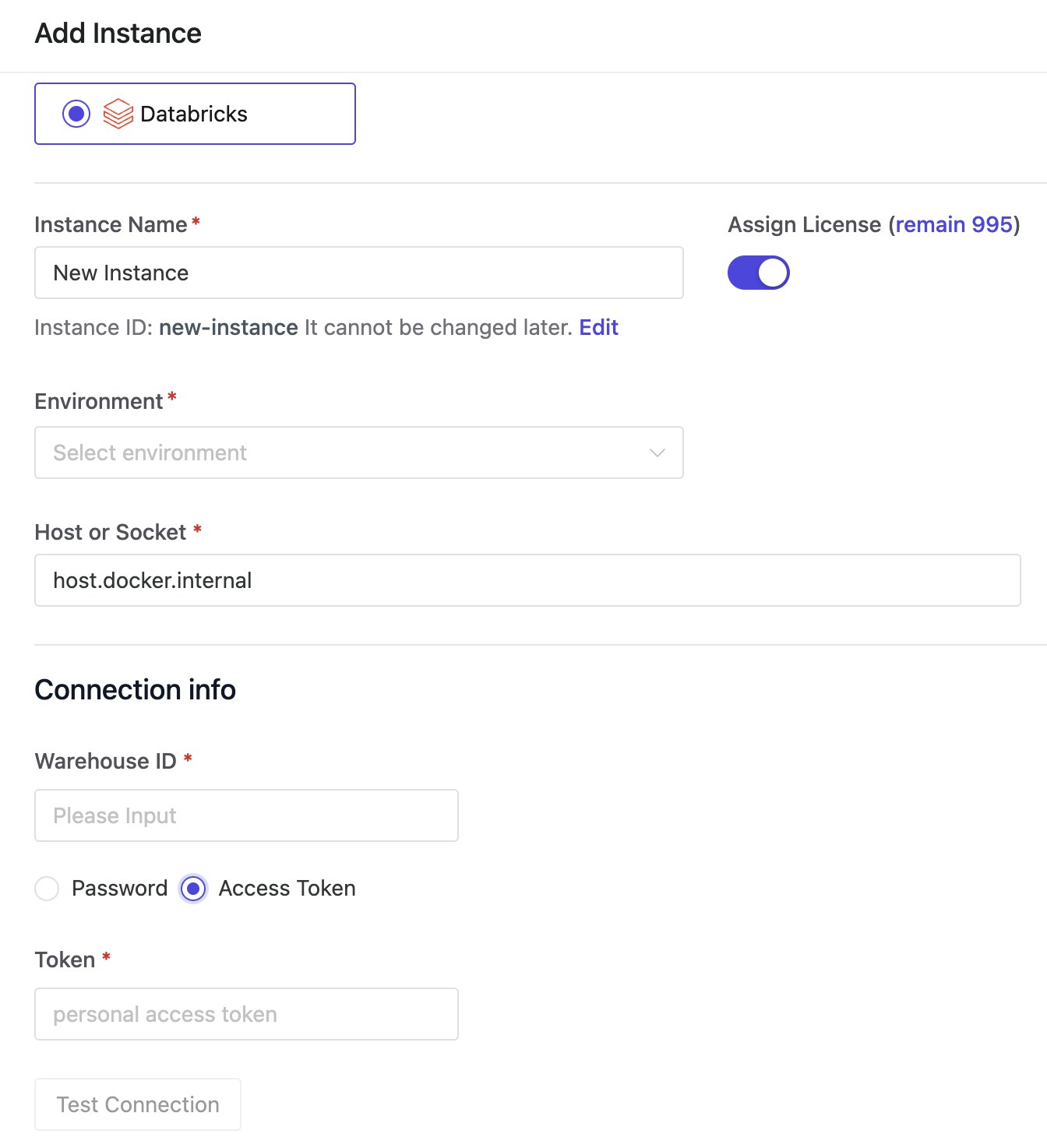
Host: Database server address
- Docker (standard): Use
host.docker.internalfor localhost databases - Docker (—network host): Use
127.0.0.1for localhost databases
- Docker (standard): Use
- Port: Database port number (e.g., 5432 for PostgreSQL, 3306 for MySQL)
- Username & Password: Database credentials with appropriate permissions
Advanced Connection Options
Read-Only Connections
Configure separate read-only connections for enhanced security and performance. Read-only connections are used for:- SQL Editor queries with data source restrictions
- Export Center operations
- Create a read-only database user or configure a read-replica
- In Bytebase, click + next to Connection Info
- Enter the read-only connection details
- Save the configuration
SSH Tunnel
Use SSH tunneling to connect through a bastion host when your database is behind a firewall or in a private network. Setup:- Enter your database connection details
- Enable SSH Connection and select Tunnel + Private Key
- Configure SSH settings:
- SSH Host: Bastion host address
- SSH Port: SSH port (typically 22)
- SSH User: Username for SSH authentication
- Private Key or Password: SSH credentials
- Test and save the connection
Connection Parameters
Customize connection behavior with database-specific parameters:| Parameter | Description | Example | Databases |
|---|---|---|---|
sslmode | SSL connection mode | require | PostgreSQL |
connect_timeout | Connection timeout | 10 | PostgreSQL, MySQL |
readTimeout | Read operation timeout | 30s | MySQL, SQL Server |
Secret Manager Integration
Never store database passwords in Bytebase. Use your existing secret manager for automatic rotation, compliance, and centralized control. Key benefits:- Meet SOC2/HIPAA compliance requirements
- Automatic password rotation without downtime
- Complete audit trail of credential access
- Centralized management across all systems
- AWS Secrets Manager - For AWS deployments
- GCP Secret Manager - For GCP deployments
- HashiCorp Vault - Enterprise secret management
- Custom API Endpoint - Custom integrations
HashiCorp Vault
Requires Vault KV v2 engine
- Create secret in Vault:
- Engine:
secret - Path:
bytebase - Key:
DB_PASSWORD
- Engine:
- Enter Vault URL
- Choose authentication: Token or AppRole
- Specify secret location
Custom API Endpoint
Endpoint Format:{{http://example.com/secrets/mydbkey}}
Expected Response:
Instance Management
Configure instance-level settings to optimize how Bytebase interacts with your databases.Sync Interval
Bytebase automatically syncs schema metadata when changes are made through Bytebase. For external changes, set an automatic sync interval to keep metadata current for SQL review, data masking, and drift detection. We recommend 24 hours for most use cases—shorter intervals can overload your database server and Bytebase service.Maximum Connections
Control the number of concurrent connections Bytebase can establish to your database. Finding the right balance is important:- Too high: May overwhelm your database server
- Too low: May cause task queuing and execution delays
- Team size and concurrent SQL Editor usage
- Available database connection capacity
- Parallel operations (migrations, backups, syncs)
Database-Specific Guides
Configure connection settings for specific database types:- PostgreSQL
- Oracle
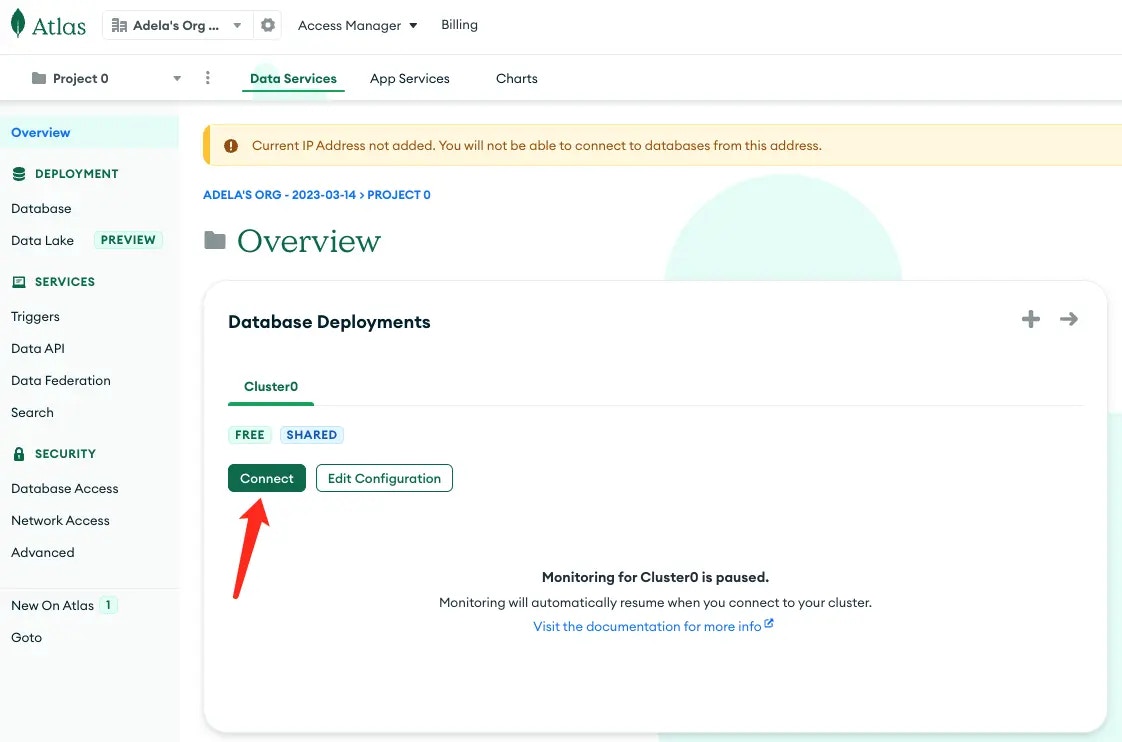
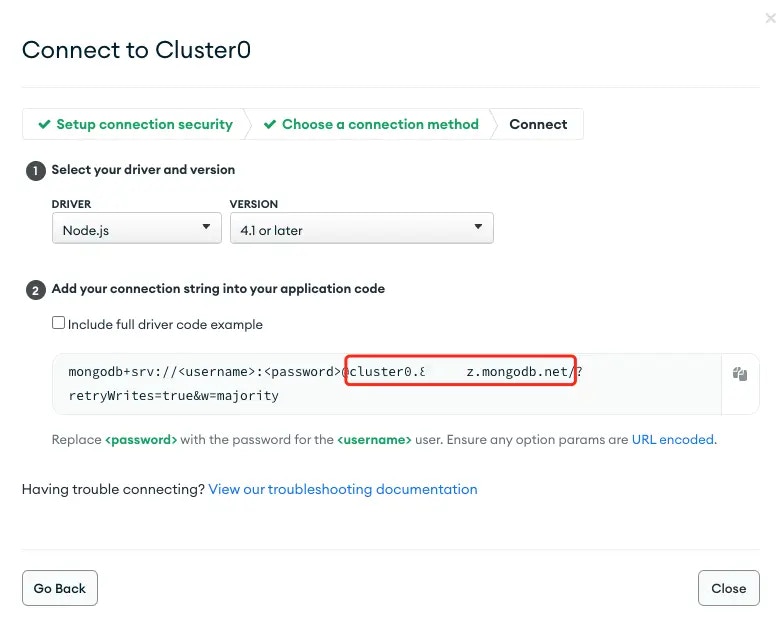
- MongoDB
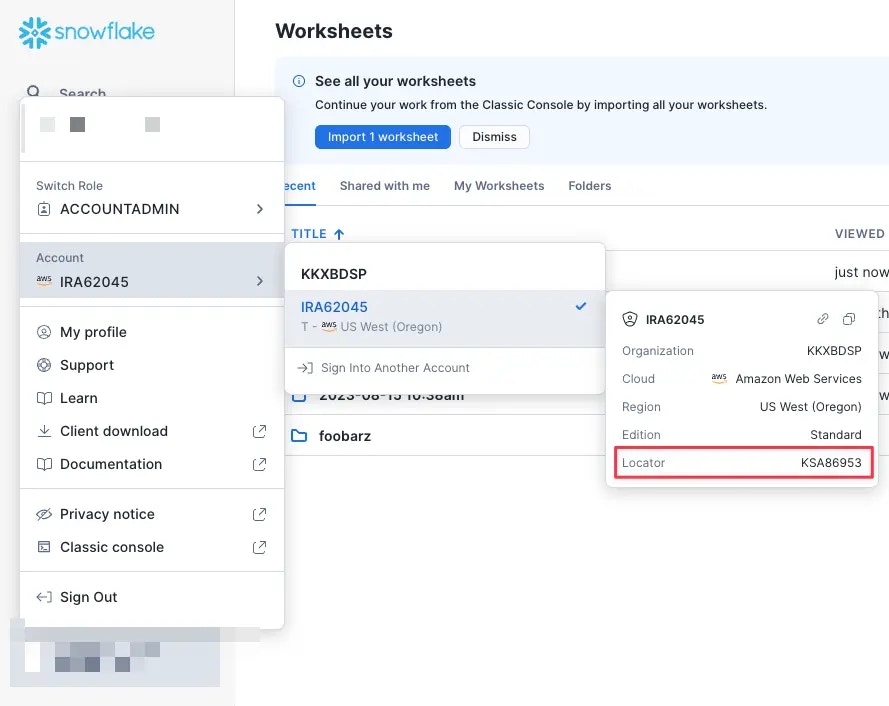
- Snowflake
- ClickHouse
- Databricks
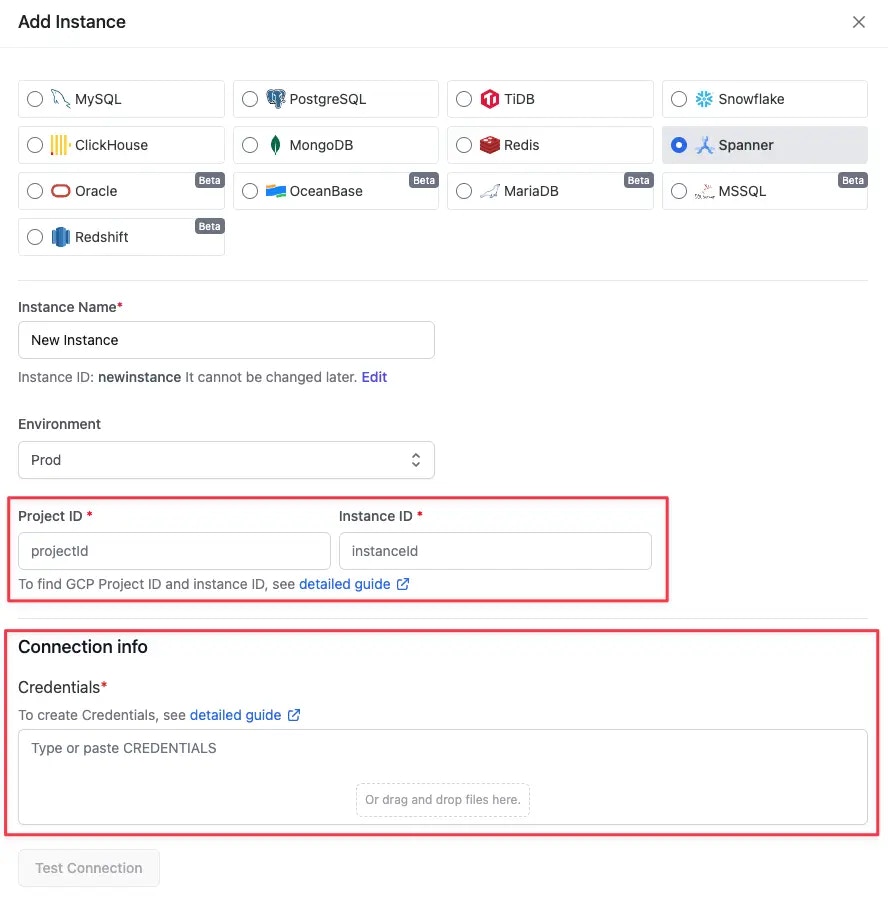
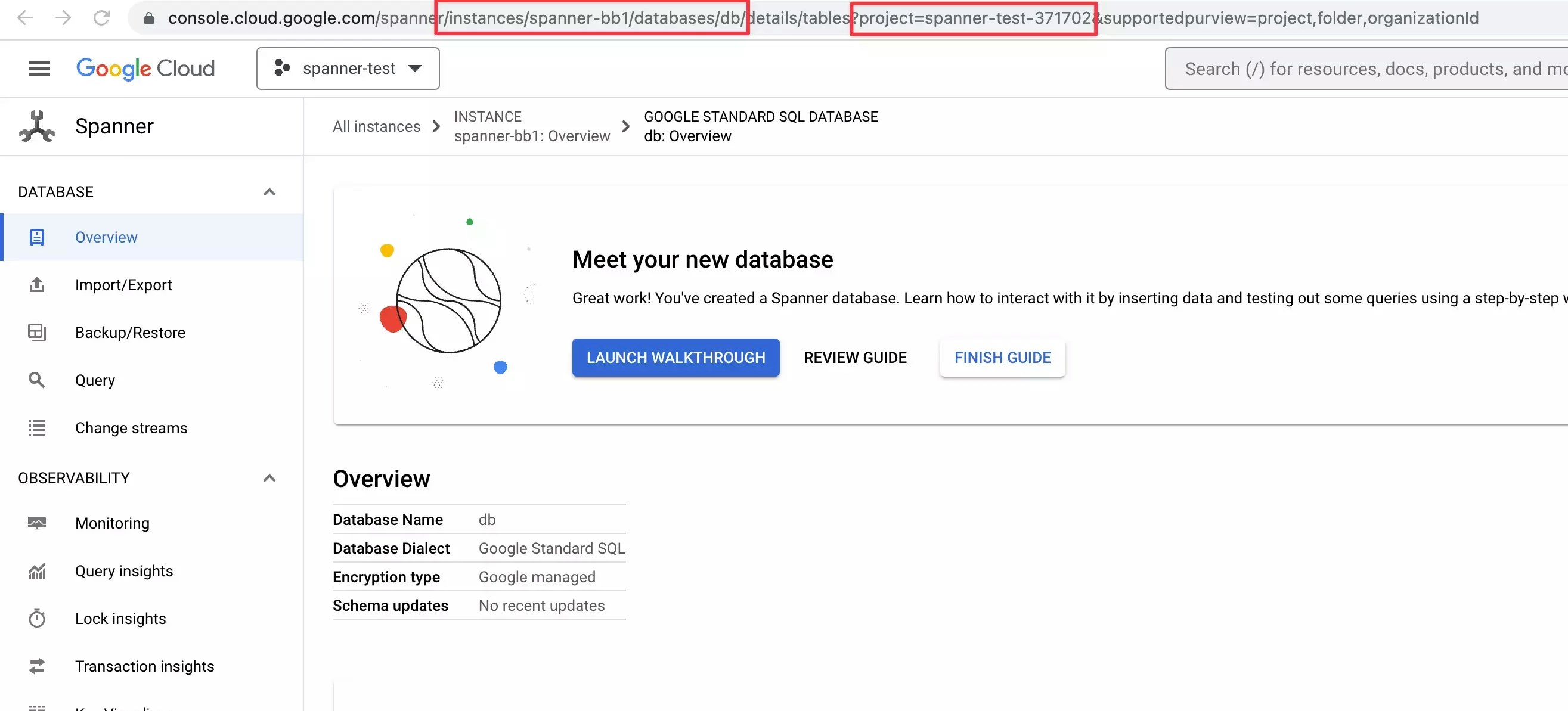
- Spanner
If the connecting instance is managed by the cloud provider, then SUPERUSER is not available and you should create the role via that provider’s admin console. The created role will have provider specific restricted semi-SUPERUSER privileges:Besides, you may need to grant Bytebase privileges with
-
In AWS RDS, the roll is
rds_superuser. -
In Google Cloud SQL, the role is
cloudsqlsuperuser.
GRANT role_name TO bytebase; for all existing roles. Otherwise, Bytebase may not access existing databases or tables.