

Prerequisites: Service Account Setup
Use attached service accounts for secure, key-free authentication on:- GCE - VMs with attached service accounts
- GKE - Pods with Workload Identity
Create Service Account
- Go to IAM & Admin → Service Accounts
- Create service account named
bytebase - Grant roles as needed:
Cloud SQL ClientandCloud SQL Instance User- for Cloud SQLSecret Manager Secret Accessor- for Secret Manager
- Note the email:
bytebase@PROJECT_ID.iam.gserviceaccount.com
Attach Service Account
Option A: GCE VM- Create VM in Compute Engine
- Set service account:
bytebase@PROJECT_ID.iam.gserviceaccount.com - Set access scopes: “Allow full access to all Cloud APIs”
Alternative: Service Account Keys
- Create a service account with required roles
- Download the JSON key file
- Set environment variable:
Cloud SQL with IAM Authentication
Prerequisites: Service account with Cloud SQL roles.
Step 1: Configure Cloud SQL Instance
- In Cloud SQL, edit your instance
- Add flag:
cloudsql_iam_authentication=on - Save (SSL is enabled by default)
Step 2: Add Service Account User
Using gcloud:Step 3: Connect from Bytebase
- Click New Instance in Bytebase
- Configure connection details:
- Host: Your Cloud SQL connection name (
PROJECT_ID:REGION:INSTANCE_ID)- Find this in Cloud SQL console → Instance details
- Port: 3306 (MySQL) or 5432 (PostgreSQL)
- Username:
- MySQL:
bytebase(service account name only) - PostgreSQL:
bytebase@PROJECT_ID.iam(with project ID)
- MySQL:
- Authentication: Select
Google Cloud SQL IAM
- Host: Your Cloud SQL connection name (
- Click Test Connection then Create
GCP Secret Manager
Store database passwords securely in Google Cloud Secret Manager instead of Bytebase.Prerequisites: Service account with
Secret Manager Secret Accessor role.Step 1: Create Secret
- Go to Secret Manager Console
- Click Create Secret
- Enter secret name (e.g.,
db-password) and your database password as value - Click Create and note the resource name:
projects/PROJECT_ID/secrets/SECRET_NAME
Step 2: Configure in Bytebase
- In your database instance settings, find the password field
- Click the key icon to use external secret
- Select GCP Secret Manager
- Enter the secret resource name from Step 1
- Test connection and save
Private IP and VPC Peering
For Cloud SQL instances using private IP:Step 1: Configure VPC Peering
- Enable Service Networking API
- Reserve IP range for services:
- Create private connection:
Step 2: Connect from Bytebase
- Deploy Bytebase in the same VPC or a peered VPC
- Use the private IP address for the Cloud SQL instance
- Configure connection as normal with private IP
Database-Specific Configuration
For specific database types running on GCP:- Cloud SQL PostgreSQL
- Cloud SQL MySQL
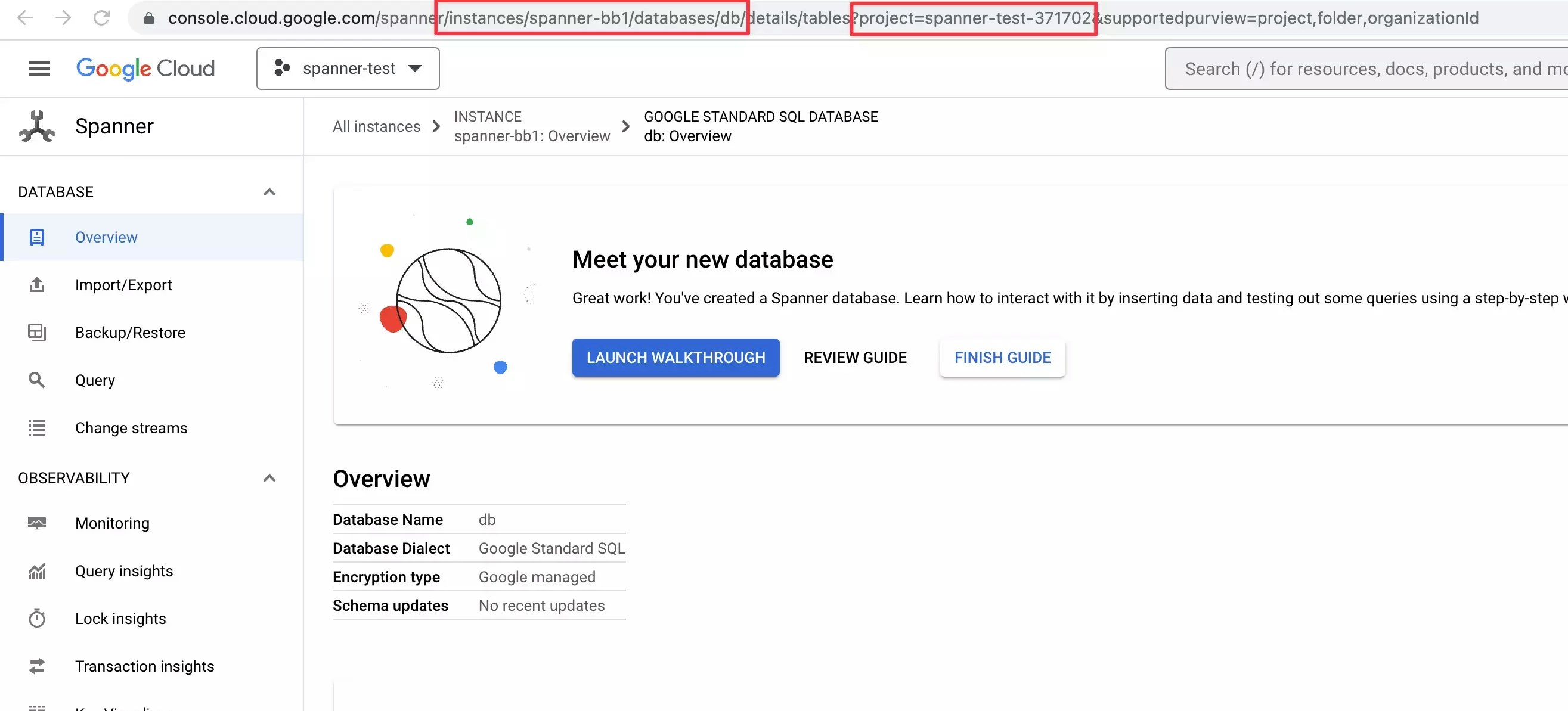
- Cloud Spanner
If the connecting instance is managed by the cloud provider, then SUPERUSER is not available and you should create the role via that provider’s admin console. The created role will have provider specific restricted semi-SUPERUSER privileges:Besides, you may need to grant Bytebase privileges with
-
In AWS RDS, the roll is
rds_superuser. -
In Google Cloud SQL, the role is
cloudsqlsuperuser.
GRANT role_name TO bytebase; for all existing roles. Otherwise, Bytebase may not access existing databases or tables.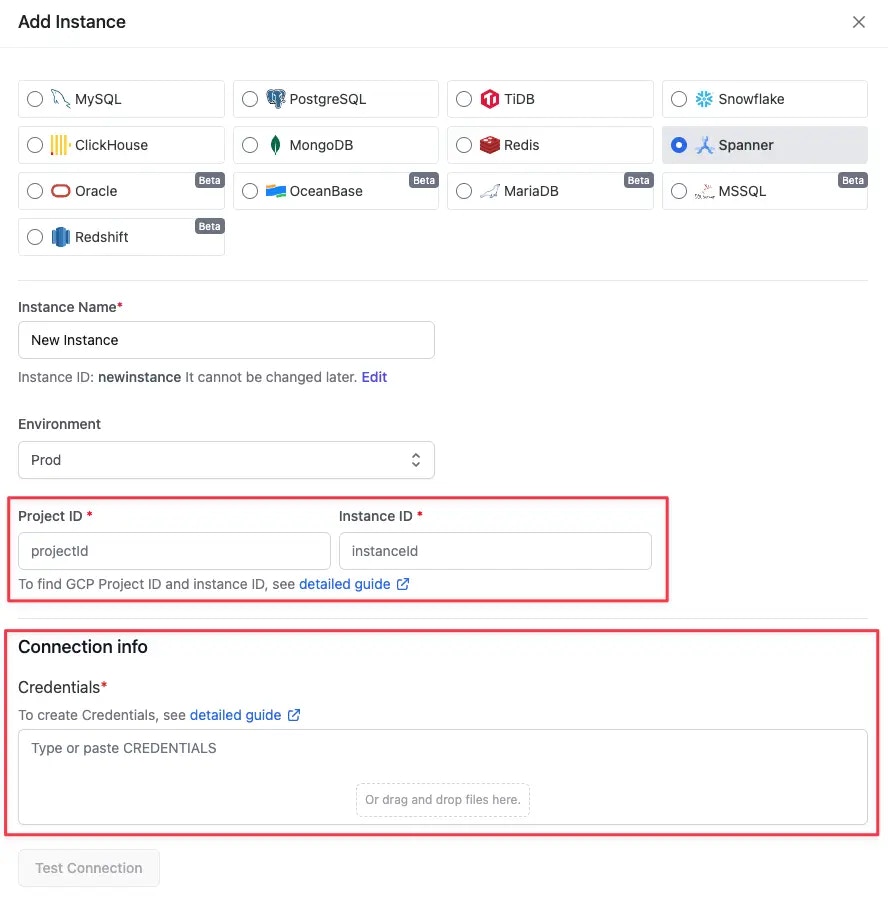
Best Practices
- Use Service Accounts over Keys: Always prefer attached service accounts
- Enable Private IP: Use VPC peering for enhanced security
- Use Secret Manager: Centralize password management
- Follow Least Privilege: Grant only necessary IAM roles
- Enable Audit Logging: Monitor database access with Cloud Audit Logs
Troubleshooting
Connection Refused
- Verify Cloud SQL instance allows connections from your IP/network
- Check authorized networks configuration
- Ensure VPC peering is properly configured for private IP
IAM Authentication Failed
- Verify service account has
Cloud SQL Instance Userrole - Check database user was created with correct type
- Ensure
cloudsql_iam_authenticationflag is enabled
Secret Manager Access Denied
- Verify service account has
Secret Manager Secret Accessorrole - Check secret resource name is correct
- Ensure secret exists in the correct project
Private IP Connection Issues
- Verify VPC peering is active
- Check firewall rules allow traffic
- Ensure Bytebase is deployed in the correct VPC